 ForgeIt

You have a photo of a poster with the wrong date, a price tag that's out of date, or a sign you'd love to read in your own language. There's no design file, and a box painted over the old words looks fake. What you want is to change the words and leave everything else alone.
That's the job ForgeIt was built for. It reads the text in your picture, you type something new, and it puts the new words back in the same place and style. This guide covers every way to do it, what each costs, and how to get a result nobody can spot.
The quick version
- 1Open a photo or screenshot in ForgeIt.
- 2Turn the tool dial to Text. ForgeIt finds every line of text for you.
- 3Tap the line you want to change, then tap Edit Text.
- 4Type your new words and tap Done.
- 5Hold Before to compare, then save it as a PNG or JPEG.
Here's the whole thing in two minutes:
The written version of that video has every step with a timestamp, so you can jump straight to the part you need.
Manual or Auto: which to use
ForgeIt has two ways to put new words into a photo.
Manual is free and instant. You type the new words and ForgeIt sets them in the same style. With Auto Match Original on, it copies the look of the old words: the font, weight, size and colour. On the sign in the video above, it picked the font Anton by itself. The old words are cleared and the background filled in, so nothing shows through.
Auto uses ForgeIt AI to paint the new words into the photo, matching its font, texture and lighting. It's the one to reach for when the text is printed on something with character, like crumpled paper, fabric or a brick wall, where flat type would look pasted on.
Getting the style exactly right
If Auto Match is close but not quite there, you can adjust every detail yourself with the tabs under the editor: presets, font, size, style, colour, effects and layout. There are 7 weights, italic and underline, colour and gradients, outline, shadow, shine, a backing plate, per-letter colours, spacing, alignment and opacity.
A few habits that help:
- Zoom in (up to 5x) before you judge the edges of the letters.
- Hold Before to flick between the original and your edit. Mistakes jump out when you compare.
- Undo and redo any step, so experimenting costs nothing.
Tips for a clean result
- Clear space around the words helps. ForgeIt works best when there's some empty background around the text, so it has something to fill the old letters in with.
- Keep the new words a similar length. Swapping "Saturday" for "Sunday" is easy. Replacing three words with twelve means the layout has to change, which is harder to make invisible.
- Can't tap the text? If text recognition misses a line, you can paint over any text to select it.
Five more things you can fix in the same photo
Editing text is one of six tools on the dial. The others cover most reasons you'd otherwise reshoot a photo:
- Replace Image: paint over a picture, logo or element and swap it for another.
- Remove Object: paint over what you don't want and it's gone.
- Remove Background: cut out your subject on your device, then keep it transparent or put it on a colour, a blur or a new photo. This one is always free.
- Add Text: place new text, stickers and pictures, and style each one. There are 50 text style presets to start from.
- Image Translator: translate every line of text in a photo into 23 languages and set it back where it was. This needs iOS 26 or later with Apple Intelligence.
The video 5 photo fixes that save a reshoot shows several of these in under a minute.
Real examples
- A typo on a flyer you've already posted. A pancake breakfast flyer said 8 PM instead of 8 AM. See how it was fixed, red ink and all.
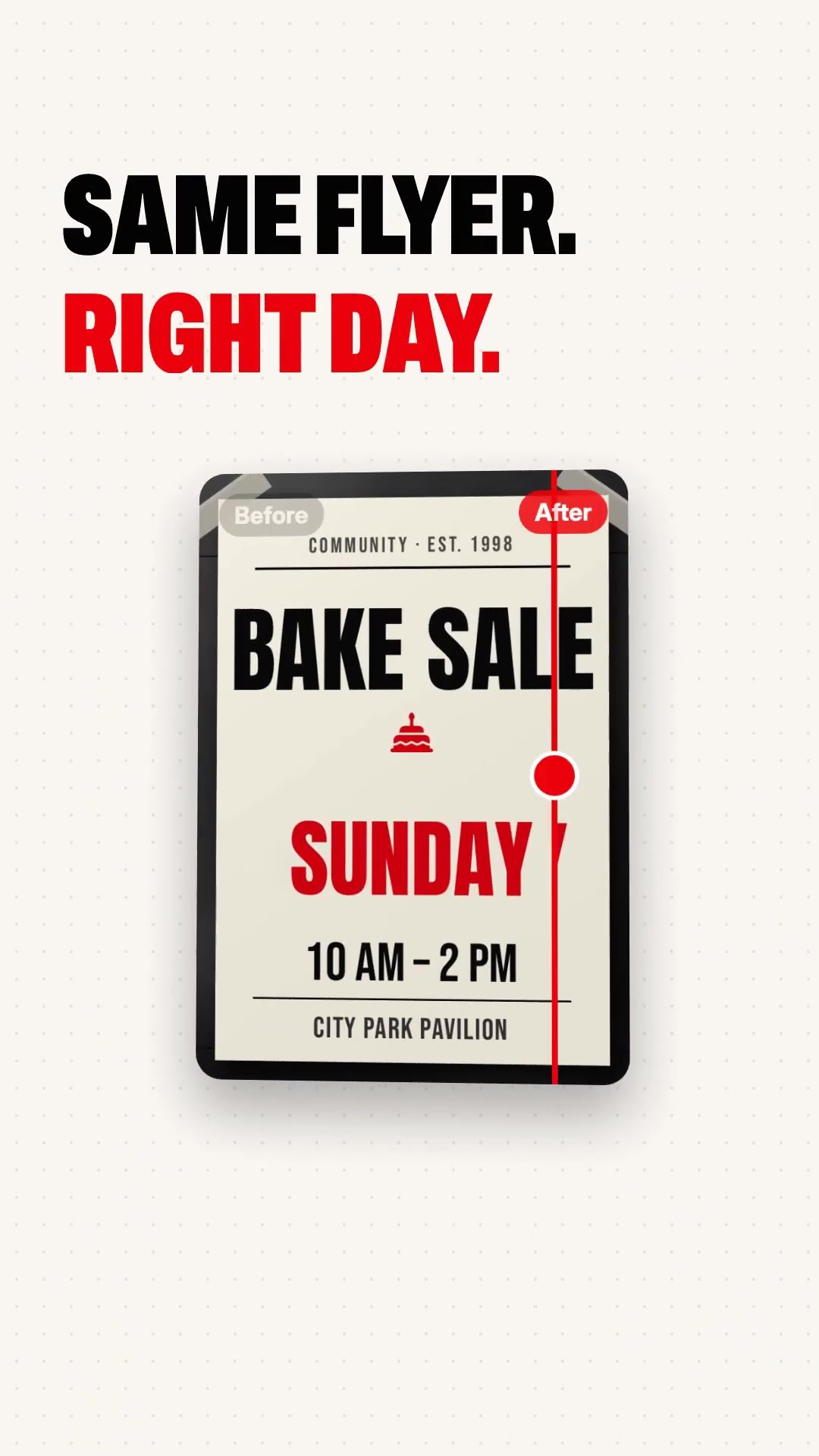
- An event that moved. A bake sale moved from Saturday to Sunday after the flyers were printed. Tap the line, type Sunday, done.
- A new price. Change the price on a price card and leave the card, and the apples, exactly as they were. Watch it here.
Is it private?
You don't need an account. Text recognition, background removal and translation run on your iPhone or iPad, so those photos never leave your device. If you choose a ForgeIt AI edit, your photo is uploaded securely to make it, as the privacy policy explains.
What's free, and what Pro adds
Manual text edits and background removal are free. Free saves go up to 1080 pixels.
ForgeIt Pro saves and shares at full resolution with no ads, unlocks all 50 text style presets, keeps unlimited edit history, and includes ForgeIt AI credits for Auto edits.
Frequently asked questions
Can I change text in a screenshot?
Yes. ForgeIt opens screenshots the same way as photos, and the same steps apply.
Will it match the original font?
With Auto Match Original on, ForgeIt copies the font, weight, size and colour of the words you're replacing. If it isn't perfect, pick the font and style yourself in the tabs.
Does it work on iPad?
Yes. ForgeIt runs on iPhone and iPad with iOS 17 or later.